
Using PuTTY with CoreSSH Server
Requirements: CoreSSH Server
CoreSSH Server is a secure, high-performance SSH server that provides SFTP, SCP, and shell access on Windows. It enables users to connect securely and execute remote shell commands.
Introduction
CoreSSH Server supports SSH sessions using the System User authentication mechanism, which relies on operating system user credentials. To connect using PuTTY, the server must be configured to allow System User authentication and have shell access enabled.
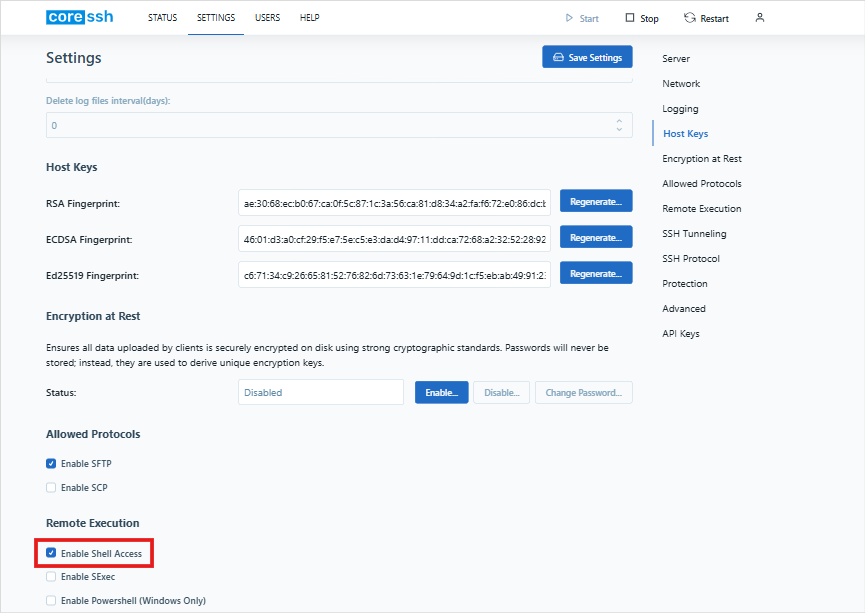
Authentication is configured from the Users tab in the CoreSSH Server. Once configured, authentication is performed using the system user’s credentials.
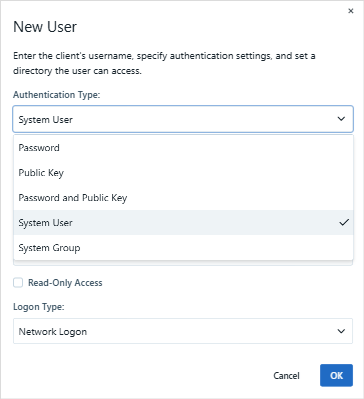
The steps below outline how to establish an SSH session using PuTTY:
In PuTTY, enter the Host Name (or IP address) of the machine where CoreSSH Server is running and the Port value configured in the CoreSSH Server settings, then click Open.
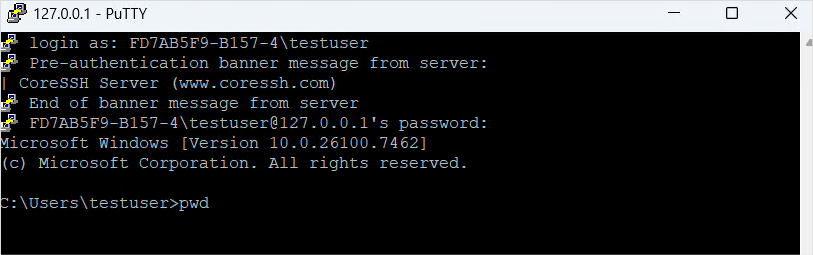
Once connected, PuTTY will prompt for a username and then a password (or other authentication method configured on the CoreSSH Server). Upon successful authentication, you will see the remote shell prompt and can start interacting with the CoreSSH Server.
Additional Information
Once the server is configured and clients can authenticate, the server can be managed remotely. Additional configuration information is available in the CoreSSH Server online documentation.
We appreciate your feedback. If you have any questions, comments, or suggestions about this article please contact our support team at support@coressh.com.