
Getting Started with Two-Factor Authentication in CoreSSH Server
Requirements: CoreSSH Server, an authenticator app (mobile or desktop)
Introduction
Two-factor authentication (2FA) adds an extra layer of security to SFTP logins by requiring a one-time passcode in addition to the user’s password or key. CoreSSH Server supports time-based one-time passwords (TOTP), which are generated by standard authenticator applications.
Before you get started
Make sure you have an authenticator application available on a mobile device or desktop before enabling 2FA. Common options include Microsoft authenticator, Google authenticator, or desktop-based authenticators such as Proton or KeePassXC.
Configure 2FA
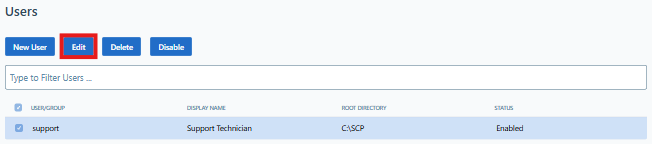
Open the Users page in the web administration interface. Add a new user if it does not yet exist. Once the user has been added, select the user from the User list and click Edit.
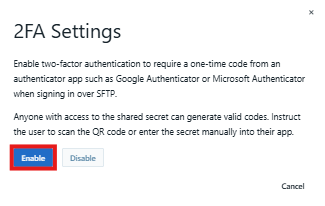
Click the 2FA button to open the 2FA Settings page then click Enable. Once enabled, the user must provide valid OTP codes from their authenticator app to log in over SFTP.
Configure the authenticator app
CoreSSH Server will display a QR Code and a secret key. These values will only be shown once. Anyone with access to the 2FA secret can generate valid authentication codes.
- Scan the QR Code using an authenticator app like Google authenticator or Microsoft authenticator
- If you can't scan the QR Code, manually enter the secret key into your authenticator app
We appreciate your feedback. If you have any questions, comments, or suggestions about this article please contact our support team at support@coressh.com.